Published on
Written by
Dekodi Team
A customer tells you the food, the fix, or the haircut was great. You smile and think, that would make a good Google review. Then they walk out, life gets busy, and the kind words never leave the room. That's not a lack of happy customers. It's a missing path from the counter to the review form. Learning How to Generate a Google Review Link gives you that path in one web address.
Table of Contents
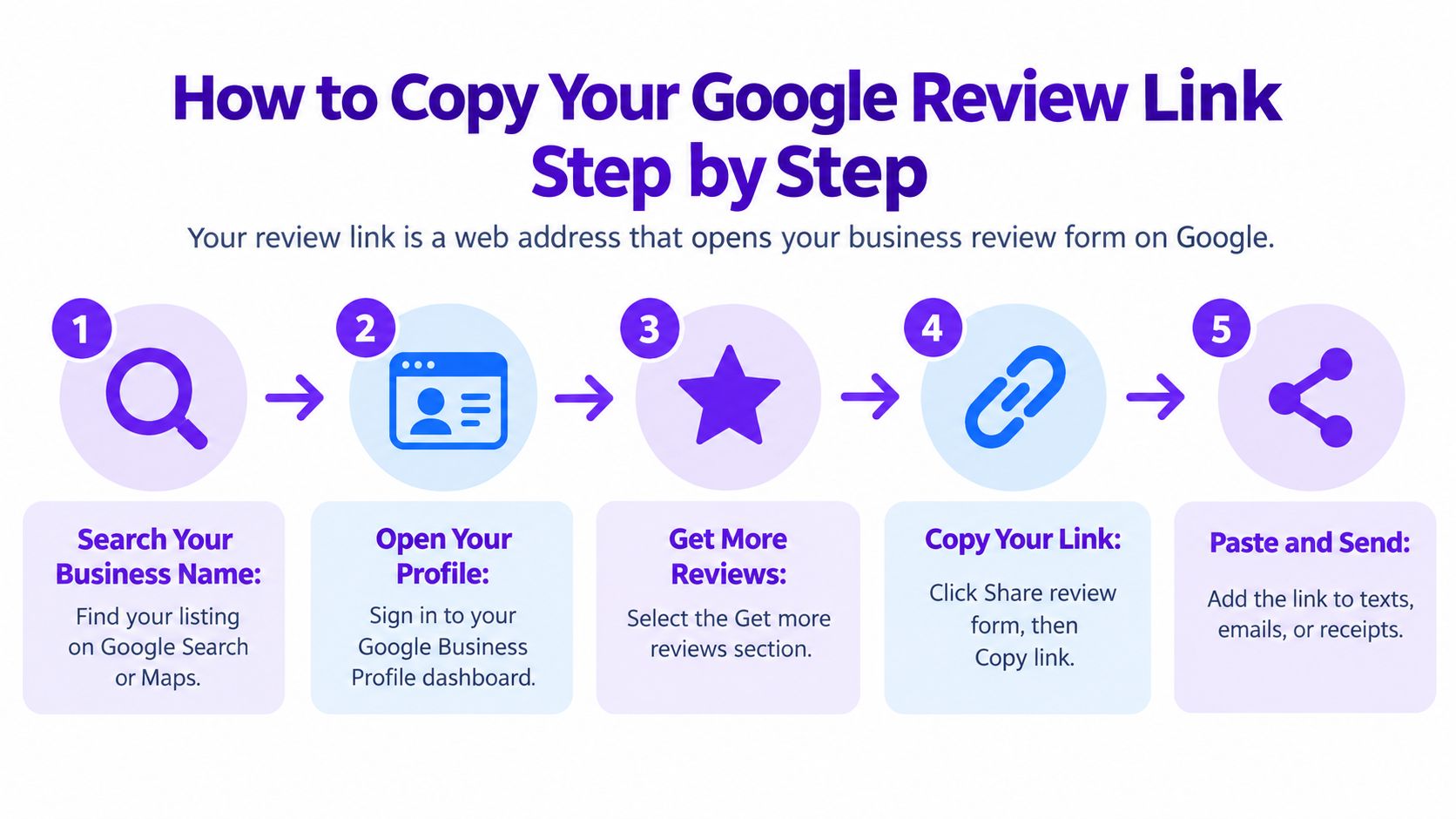
How to Copy Your Google Review Link Step by Step
A regular stands at the counter and says, "I meant to leave you a review last time. Where do I go?" You don't want to tell them to search Google and hope they find the right listing. A review link is a web address that opens your business's review form on Google. One tap takes them there, with no hunting through search results.
What You Need Before You Start
You need three things in place first. Skipping this check is where most wrong link problems start.
A claimed Google Business Profile: Your business listing on Google Search and Maps, verified as yours.
A Google account with manager access: The account that can edit that profile, not a personal account with no rights.
A phone or computer signed in to that account: Google only shows the owner tools when you're signed in.
If your profile still needs work, the local business profile advice from Baikou covers the setup basics that make this step go smoothly.
The Six Steps to Copy Your Link
Google gives you a built in way to do this. You don't need to build a web address by hand or guess at one.
Sign in to the Google account that manages your profile. This is how Google knows you're the owner.
Open Google Search or Google Maps and find your business, or open the profile in Google Business Profile. You're looking for your own listing, not a general search result.
Select "Read reviews." This opens the reviews area for your profile.
Select "Get more reviews." At this step, Google creates the link for you.
Select "Copy" beside the generated review link. The full address is now ready to paste.
Paste the link into a note and open it once. Confirm it shows your business name and address before anyone else sees it.
The Google Business Profile help page on getting more reviews walks through this same path from your verified profile, through "Read Reviews" and "Get more reviews," to the copy button. The link it creates ties to your profile, so customers land on your review form instead of a general Maps search.
You now hold one reusable link you can paste again and again. Keep the whole address intact when you copy it, since a cut off link won't open the form. One word of caution: Google changes button labels from time to time. If your screen wording looks a little different, trust what's on your screen. The path stays the same even when a label shifts.
Make a QR Code and Test It Before Customers See It
The same panel that gives you the link also offers a QR code, the square pattern a phone camera can scan. It points to the same review form. For customers standing in your shop, a scan is faster than typing or tapping through a text.
Downloading the Code
Stay on the "Get more reviews" panel. The code sits beside the link you just copied.
Use a computer browser for this step. Google's QR code creation works only there right now, not on a phone.
Right click the code and select "Save image as." Save it somewhere you can find it for printing.
Print it large enough to scan from a short distance. A table card or counter sign works well, with the same review link behind the code.
Run the tests below before anything goes out. Five minutes now saves a reprint later.
Practical rule: A QR code and a link should both lead straight to the public review form, not to a menu, an offer page, or a list of choices.
Pre-share checks for your review link and QR code
Test | How to run it | What passes |
|---|---|---|
Logged-out check | Open the link in a private browser window | The review form opens for your business |
Phone check | Scan the QR code with a phone camera and open the link | The form loads for the same business on a phone |
Desktop check | Open the link in a desktop browser | The same business name and address appear |
Location check | Compare the listed name and address with your storefront | They match exactly, not a similarly named business |
Copy check | Paste the full URL into a note and open it again | Nothing is cut off and the form still loads |
Testing matters because a code that opens a neighbor's listing sends your customers to the wrong business. You won't see that error from behind the counter. Your customers will, and most won't tell you. They'll just close the page.
If you use QR codes for other things, like contact details at the register, the HolaQR guide to QR contact pages explains how those codes carry information to a phone. The same care applies here. You can also make a separate code for each spot, such as the counter and a table tent, to see which one gets the most scans. Each code still ends at Google's review form. Keep the destination simple and the checks done first.
Word the Request So Google Keeps the Review
An owner leans over the counter and asks, "Can I just tell every happy customer to leave five stars?" The honest answer is yes, you can ask for reviews, with conditions. The wording around your link decides whether those reviews stay up.
What Google Allows and What It Bans
Ask every eligible customer after a real transaction, not only the ones you expect to be happy. That consistent habit keeps you on solid ground. The Google contribution policy on fake engagement prohibits offering incentives in exchange for reviews, including payment, discounts, free goods, and free services. Google classifies incentivized or biased reviews as rating manipulation and says such content may be removed from Maps.
Allowed and prohibited review request practices
Practice | Allowed | Why it matters |
|---|---|---|
Asking every eligible customer after a real transaction | Yes | The request is consistent and unbiased |
Sending a neutral message such as "Tell us about your experience on Google" | Yes | It invites honest feedback without steering the rating |
Offering a discount, gift or free service for a review | No | Google treats incentives as rating manipulation |
Asking for five stars or specific wording | No | Google prohibits requesting specific ratings or wording |
Sending the link only to happy customers | No | Selective solicitation is prohibited |
Routing unhappy customers to a private form instead of Google | No | Discouraging negative reviews is prohibited |
A Message You Can Use As Is
Keep it short and neutral. Try this: "Tell us about your experience on Google" with your link right beneath it. That one line invites honesty without naming a star count or promising anything in return.
For a customer who had a bad visit, give an ordinary support channel, such as your phone number or email, and help them. Don't make them use it instead of Google, and don't ask them to hold off on a review. Help first because it's right. The link stays open to them either way.
Cover this with your staff too. No one on the team writes a review for a customer, pressures someone to post while standing in the room, or asks for a specific rating. If your reviews have already taken a hit, our page on repairing your online reputation covers the cleanup side. The goal here is simple: honest feedback from real customers, not a shortcut to five stars.
Where to Share Your Review Link for Real Responses
Maybe your link lives in one place right now. A receipt in a drawer. A printout taped to the counter. A Facebook post from last spring. One forgotten spot can't do much work, no matter how good the link is.
That's the Patchwork Tax at work: a useful tool tucked into one habit, while your day jumps between disconnected apps and tasks. Every switch between apps pulls attention away, and that refocusing time adds up over a working week. A review link buried in that pile gets used once and forgotten. The fix costs nothing. Put the link where your customers already look, and it keeps working without extra effort from you. The customer who pays by card sees the receipt. The customer who books by phone gets the follow-up email.
Review request channels and where each fits
Channel | Best use | Why it fits |
|---|---|---|
Post-purchase emails and appointment follow-ups | Customers already read it after a visit | |
In-person request | Asking at checkout with a QR code on the counter | The customer is still in the room |
Social media | Facebook posts, business pages and WhatsApp messages | Reaches people who already follow you |
Receipts, invoices and printed materials | Receipts, invoices, table tents and thank-you cards | The link travels with every transaction |
The short video below shows how a direct link shortens the path for a customer who is ready to write.
Four Habits That Make the Link Work
Send the request soon after the visit. The experience is still fresh, and details come back easily. A request that arrives while the customer still remembers the job reads as a natural follow-up.
Put the QR code where the customer already stands. The counter, the payment screen, or the table works better than a back wall. If someone has to walk across the room to scan it, few will bother.
Add the link to receipts and invoices. Every transaction carries the invitation home, including for customers you never spoke to directly.
Keep a separate link for each location. Each shop gets reviews on its own listing, so one strong branch never has to carry the others.
Being found and being trusted work together. Our guide to search visibility for local service businesses shows how reviews support the rest of your presence on Google. You don't need the link in twenty places. You need it in the right few, used the same way every time. Pick two or three channels from the table, get your staff comfortable with them, and let the repetition do the work.
More options get attention. Clear options get decisions.
Fix Links That Open the Wrong Place or Lose Reviews
The most common failure is quiet. Your link opens a similarly named business across town. It usually happens because the link came from a search result, a name match, or a generic Maps address instead of your own verified profile.
Review link problems, causes and fixes
Problem | Likely cause | Fix |
|---|---|---|
Link opens a similarly named business | Copied from a name match or neighbor's listing | Recopy the link from your own verified profile and check the address |
QR option missing on your phone | QR download works only in a computer browser | Switch to a computer browser to download the code |
Multi-location link opens a corporate homepage | Parent-company or generic URL was reused | Create and test one link per verified profile |
Customer lands on a general Google Maps search | A generic listing URL was shared | Replace it with the link from Get more reviews |
Reviews removed by Google | Incentives, review gating, staff-written or duplicate reviews | Stop the practice, keep requests neutral, and audit templates |
Multi-location Businesses Need One Link Each
Every verified profile needs its own link, copied and tested on that profile. Never reuse a parent company link or a shared link for a neighboring location. Say you run two shops with the same name. One shared link sends both sets of customers to one listing, and the other shop looks unloved on Google for no good reason.
When a Review Disappears
If a review vanishes, check your own process first. The Google Maps user contributed content policy states that Google may remove violating content, and its Maps guidance states that reviews can be removed for spam or other policy violations. Look at the request you sent, the wording in it, and how staff handled it in the room. If something crossed a line, stop that practice before you send another request.
A few records make this check easy. Our web reputation check guide covers what to review on a regular basis.
Keep the transaction date and request timestamp for each request. You can prove the review followed a real visit.
Suppress repeat requests to the same customer. One neutral ask is enough.
Limit who can see request data. Fewer hands means fewer mistakes.
Audit each location's message templates every quarter. Wording drifts over time if no one checks it.
Fix the link first, then the process.
Send Your Link to Five Customers This Week
You don't need a big launch. Treat five as the weekly floor: send the neutral request to every eligible customer from the last week or two after a real transaction, and make sure at least five are logged before the week ends. Do not choose by mood, ticket size, or who seemed happiest; the request stays clean when the offer and the timing are the same for everyone.
Send each one your tested link with the neutral line, "Tell us about your experience on Google," and put the link right beneath it. Use the channel they already answer, whether that is email, a text, or a follow up message after an appointment. If a customer asks what to write, keep it plain: honest details about the visit are enough.
Log every request in one shared sheet: name, date sent, and a space to mark when a review shows up. If you tagged your link or used a separate code for a location, note the clicks beside the name too. One sheet beats five sticky notes.

Check the sheet a few days later. Note which reviews appeared, and reply to each one with a short, specific thank you that mentions what they mentioned. If a row has clicks and no review, leave it alone; one neutral ask is enough. A reply that sounds like a person builds as much trust as the review itself for the next customer reading it.
That's the routine. A copied link is one setup task; steady requests, honest wording, and prompt replies turn it into trust over time. At Dekodi, that work sits inside Start. Fund. Market.: the link, the wording, and the tracking are planned together so your team can see what is working. If you want a hand setting it up, reach out through the site.